How to See Clipboard History on Mac: The Complete Guide
Macs don't keep a clipboard history by default — only the last thing you copied. Here's how clipboard history actually works on macOS, and how to get a real, searchable one.
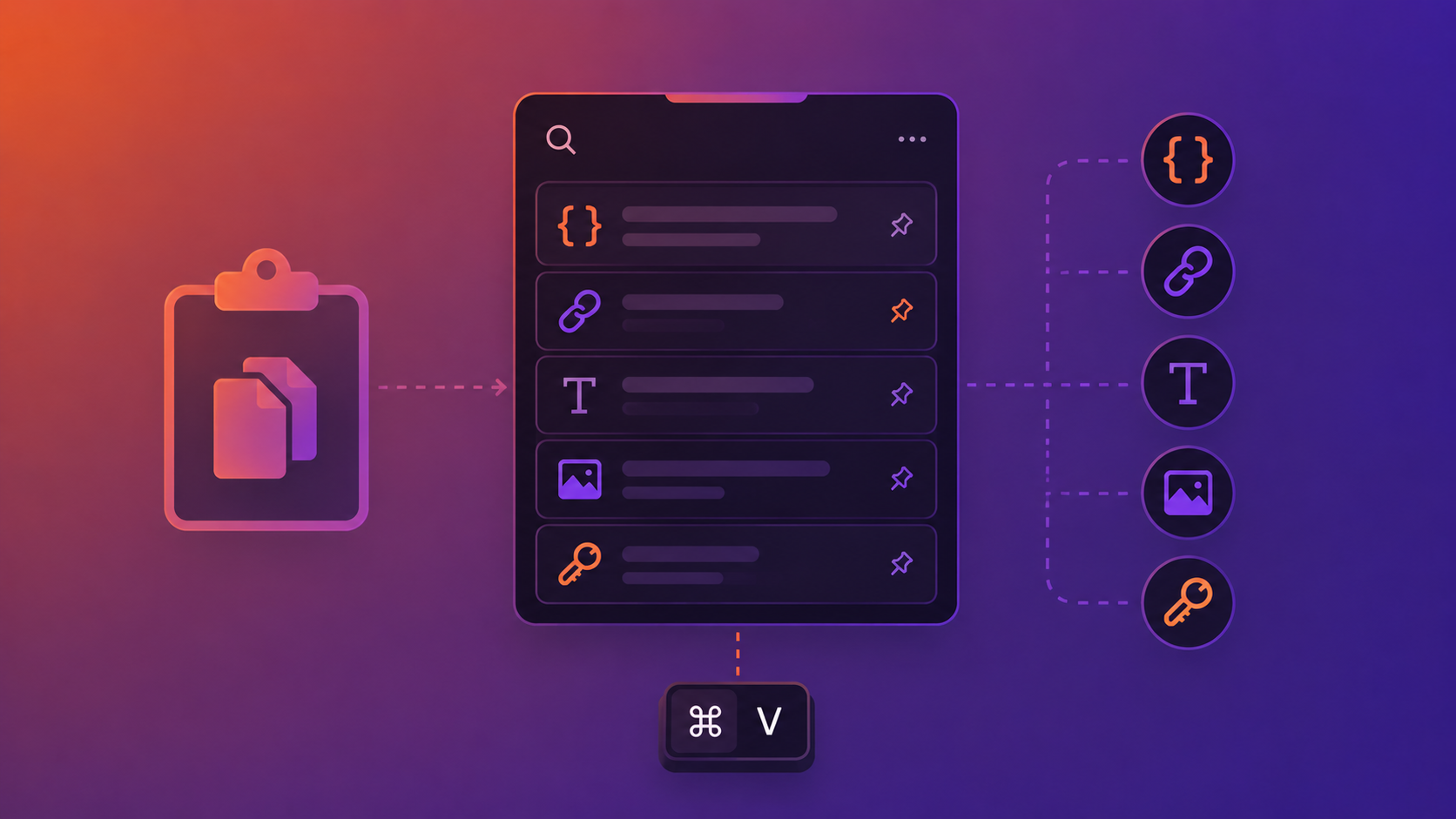
You copied something five minutes ago. Then you copied two more things. Now you need that first one back — and it's gone. On a Mac, that's not a mistake you made; it's how the clipboard is designed to work.
This guide explains how the clipboard actually works on macOS, what Apple does and doesn't give you out of the box, and how to turn your Mac into something that remembers everything you copy — searchable, organized, and private.
Does macOS have a built-in clipboard history?
For most of macOS's history, the answer has been no. The Mac clipboard holds exactly one item at a time. When you press Cmd+C again, whatever was there before is overwritten and gone. There's no "recent items," no scrollback, no way to get it back.
There are two partial exceptions worth knowing about:
- Universal Clipboard syncs the current clipboard item between your Apple devices (copy on your Mac, paste on your iPhone). It's handy, but it's still just one item — it isn't a history.
- macOS Tahoe added a clipboard history to Spotlight — a genuine step forward. It's fine for casual use, but it has short retention and no understanding of what you copied. (We compared it in detail in macOS Tahoe Clipboard History vs ClipBear.)
So unless you're on the very latest macOS, your Mac keeps no history at all — and even then, it's basic.
How to view what's currently on your clipboard
If you just want to see the single item currently on your clipboard, macOS does have one built-in tool:
- Click the desktop or open Finder.
- In the menu bar, choose Edit → Show Clipboard.
A small window appears showing the current clipboard contents. That's the extent of the native tooling — it shows what's there right now, and nothing from before. The moment you copy something else, this updates and the previous item is lost.
Why one item isn't enough
For light use, a single-item clipboard is fine. But think about how often you actually need the previous thing you copied:
- You copy a value to paste, then need to copy something else mid-task — and lose the first.
- You're moving several snippets between files and have to bounce back and forth one at a time.
- You copied an error message, a URL, and a command earlier — and now you need all three.
Each of these is a tiny interruption. A clipboard that remembers removes them entirely. That's what a clipboard manager does: it runs quietly in the background, saves everything you copy, and lets you pull any past item back with a keystroke.
How to get real clipboard history on Mac
Since macOS won't keep a meaningful history on its own, you add a clipboard manager — a small menu-bar app that records your clipboard and makes it searchable. Once installed, every copy is saved automatically; you open the app's window, find the item you want, and paste it.
A good Mac clipboard manager should give you:
- Persistent history — items stick around for days or weeks, not minutes, and survive restarts.
- Fast search — find a past copy by typing part of it, instead of scrolling.
- Pinning — keep items you reuse constantly one keystroke away.
- Privacy — your clipboard holds passwords, tokens, and private messages, so it should be stored encrypted and locally, not synced to a server.
- The ability to exclude sensitive apps — so passwords from your password manager are never recorded.
ClipBear: clipboard history built for the way you work
ClipBear is a Mac clipboard manager that covers all of the above — and adds a layer most clipboard managers don't: it understands what you copied.
A real, searchable history. ClipBear keeps a configurable history of 10 to 500 items, with auto-clear intervals from one week to six months. Press Cmd+F to search your entire history, filter by content type, and pin up to five items to Cmd+1 through Cmd+5 for instant access.
Private by default. Your history is encrypted on disk with AES-256-GCM, using a key derived from your Mac's own hardware — nothing is synced to a cloud, and there's no account to create. An app blacklist lets you exclude sensitive apps (like your password manager) so their copies are never stored.
It understands developer content. ClipBear automatically detects 13 content types and offers one-click actions: decode a JWT without opening jwt.io, read a cron expression in plain English, convert a color between HEX, RGB, and HSL, format messy JSON, extract the timestamp from a MongoDB ObjectID, and pull text out of a screenshot with on-device OCR — all without leaving your clipboard.
How to set it up (about two minutes)
- Download ClipBear from clipbear.app and drag it to your Applications folder.
- Open it — it lives in your menu bar.
- Grant the accessibility permission it asks for (this is what lets it watch the clipboard).
- Copy a few things, then open ClipBear (or press its shortcut) to see your history building up.
- In settings, set your history size, auto-clear interval, and add any apps you want to blacklist.
That's it — from that point on, your Mac remembers everything you copy.
Frequently asked questions
Can I see clipboard history on Mac without an app? Only the current item, via Finder's Edit → Show Clipboard (and, on macOS Tahoe, a short history in Spotlight). For a persistent, searchable history, you need a clipboard manager.
Is clipboard history safe? It depends on the app. A clipboard captures sensitive data all day, so look for one that stores history encrypted and locally and lets you exclude apps like password managers. ClipBear does both.
Will it slow down my Mac? A well-built clipboard manager is lightweight and runs in the menu bar with negligible overhead.
Does it sync between my Macs? ClipBear is local-first by design — histories stay on each machine rather than syncing to the cloud, which is the safer choice for sensitive data. One license covers two Macs.
Get your clipboard history back
Your Mac's one-item clipboard is fine until the moment you need the thing you copied two steps ago. A clipboard manager fixes that permanently — and a good one does more than remember, it understands.
Try ClipBear free for 7 days at clipbear.app. Everything stays on your Mac.