macOS Tahoe Clipboard History vs ClipBear Compared
macOS Tahoe adds clipboard history to Spotlight. Here's how Apple's built-in solution compares to ClipBear for developers — and where it falls short.
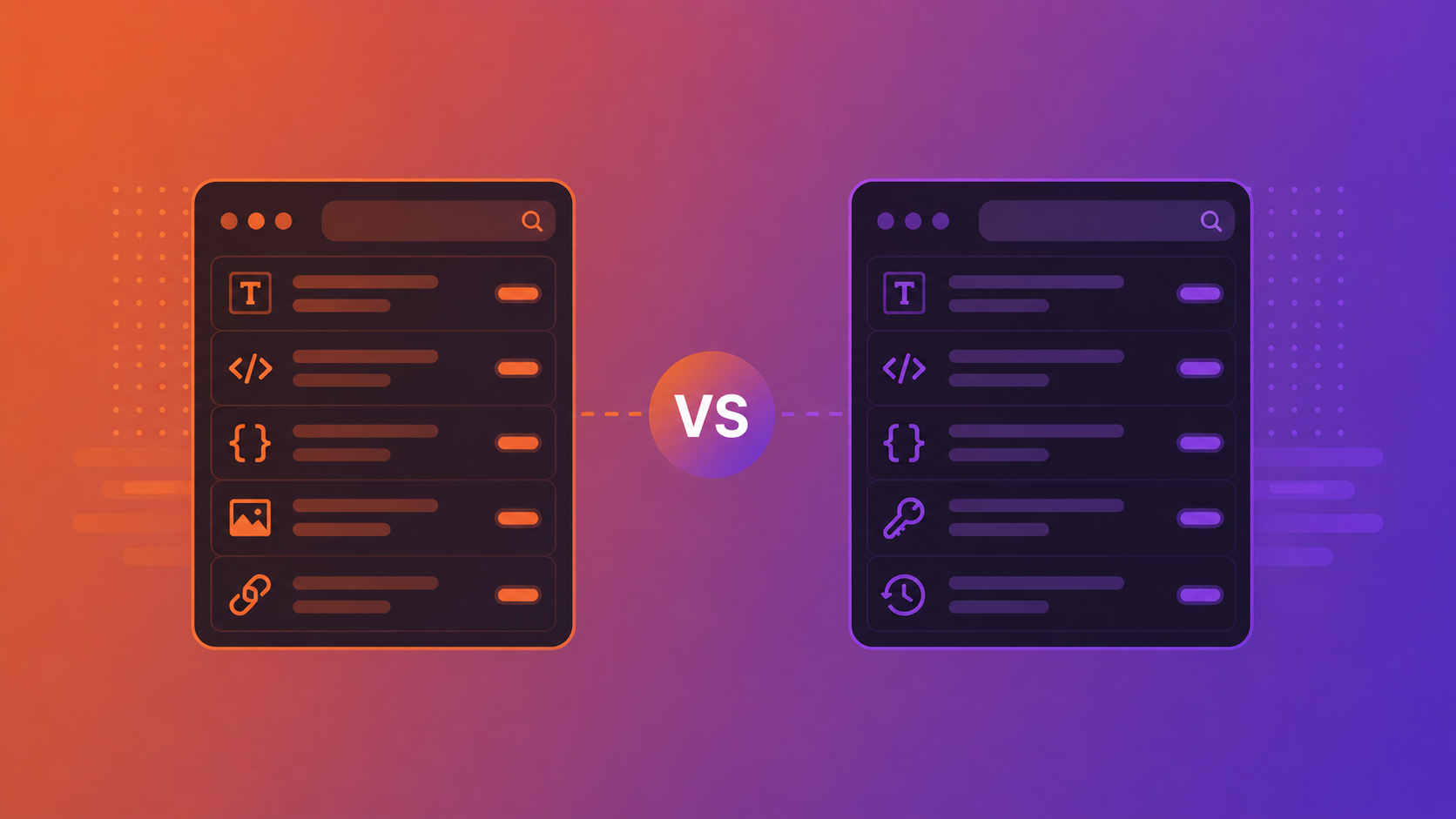
Apple finally did it. With macOS Tahoe, Spotlight now includes clipboard history — a feature Mac users have been requesting for years. You can access recently copied items directly from Spotlight, paste them back, and it works out of the box with zero configuration.
For casual users, this might be all they need. But for developers, the story is more nuanced. Apple's implementation is a solid starting point, but it makes trade-offs that matter if you spend your day copying tokens, code snippets, timestamps, and API responses.
Here's an honest comparison.
What macOS Tahoe Gets Right
Apple's approach has some real advantages. It requires no installation — it's part of the operating system. It integrates with Spotlight, which you're already using. It works with Universal Clipboard across devices if you're in the Apple ecosystem. And for basic clipboard history — copying a few text snippets and pasting them back within the same day — it's frictionless.
The integration with Spotlight search is particularly well done. You don't need to learn a new interface or memorize a new shortcut. If you use Spotlight, you already know how to access your clipboard history.
Where It Falls Short for Developers
History Limits and Retention
Apple's clipboard history in Spotlight has a relatively short retention window. Items expire, and the history size is limited compared to dedicated clipboard managers. If you copied something yesterday and need it today, it may already be gone.
ClipBear lets you configure history from 10 to 500 items with auto-clear intervals from one week to six months. Your clipboard history persists across app restarts and is stored encrypted on disk — so that SQL query you copied last Tuesday is still there when you need it on Friday.
No Content Detection
This is the biggest gap for developers. Spotlight's clipboard treats everything as the same kind of content — text, image, or file. It doesn't know that the 24-character hex string you copied is a MongoDB ObjectID with an embedded timestamp. It doesn't recognize JWTs, cron expressions, IPv4 addresses, UUIDs, or ISO 8601 datetimes.
ClipBear auto-detects 13 content types and provides inline context and one-click transformations. Copy a JWT and decode the payload without opening jwt.io. Copy a MongoDB ObjectID and see the creation timestamp immediately. Copy a cron expression and read "Every 6h, Mon–Fri" instead of mentally parsing 0 */6 * * 1-5.
No Transformations
Spotlight's clipboard lets you paste what you copied. That's it. There's no encoding/decoding, no format conversion, no extraction.
ClipBear offers contextual transformations: HTML/URL encoding and decoding, JSON key formatting, color format conversion (HEX to RGB to HSL), email and URL extraction from text blocks, IP to CIDR notation, ISO datetime to Unix timestamp, and URL to QR code generation.
Security Concerns
This is worth paying attention to. Apple's Spotlight clipboard stores items without dedicated encryption, and — critically — it doesn't exclude passwords or sensitive content by default. If you copy a password from your password manager, it sits in Spotlight's clipboard history alongside everything else.
ClipBear encrypts all clipboard history with AES-256-GCM. The encryption key is derived from your machine's hardware UUID — no keychain popups, no cloud keys, no configuration needed. And the app blacklist feature lets you exclude specific apps (like 1Password, your banking app, or any other sensitive application) so their clipboard content is never stored.
No OCR or AI Features
Spotlight's clipboard stores images, but it doesn't analyze them. If you screenshot an error message, you still need to type it out or use a separate OCR tool.
ClipBear scans every copied image with Apple's Vision framework (on-device) and displays recognized text inline. One click copies the extracted text to your clipboard. The AI grammar correction feature (also on-device, via Apple Intelligence) checks every text entry and offers one-click corrections.
No Pinning or Organization
Spotlight's clipboard is a simple chronological list. There's no way to pin frequently-used items, no content type filters, and no multi-select.
ClipBear supports pinning up to 5 items accessible via Cmd+1 through Cmd+5, filtering by any of 13 content types, multi-selection with tab or comma-separated output, and smart search across your entire history.
Side-by-Side Comparison
| Feature | macOS Tahoe Spotlight | ClipBear |
|---|---|---|
| Clipboard history | Yes (limited retention) | Yes (up to 500 items, configurable) |
| Search | Via Spotlight | Dedicated Cmd+F |
| Content type detection | No | 13 types auto-detected |
| Developer transformations | No | JWT, JSON, timestamps, IPs, cron, colors |
| Encrypted storage | No | AES-256-GCM |
| App blacklist | No | Yes |
| Image OCR | No | Yes (on-device, Apple Vision) |
| AI grammar correction | No | Yes (on-device, Apple Intelligence) |
| Pinning | No | Yes (Cmd+1–5) |
| Cross-device sync | Yes (Universal Clipboard) | No (local by design) |
| Image compression/conversion | No | PNG, JPG, WebP conversion + compression |
| Price | Free (built-in) | $15/year |
Who Should Stick with Tahoe's Built-In Clipboard?
If you primarily copy and paste text snippets and images throughout the day, and you don't need them beyond a few hours, Spotlight's clipboard history is perfectly adequate. It's free, it's built in, and it works with no setup.
Who Should Consider ClipBear?
If your clipboard is full of developer content — JWTs, ObjectIDs, JSON, timestamps, IP addresses, cron expressions — and you're tired of opening browser tabs to decode, format, and convert them, ClipBear turns your clipboard into a tool that actually understands your workflow.
The $15/year price is the cost of roughly one month of a JSON formatter subscription or three trips to jwt.io per day for a year. For developers who work with these content types daily, it pays for itself in the first week.
Try ClipBear free for 7 days at clipbear.app.