Why Your Clipboard Manager Should Be Local-First
Your clipboard captures API keys, JWTs, credentials, and passwords all day. Here's the case for keeping it local, encrypted, and off the cloud — and what to look for.
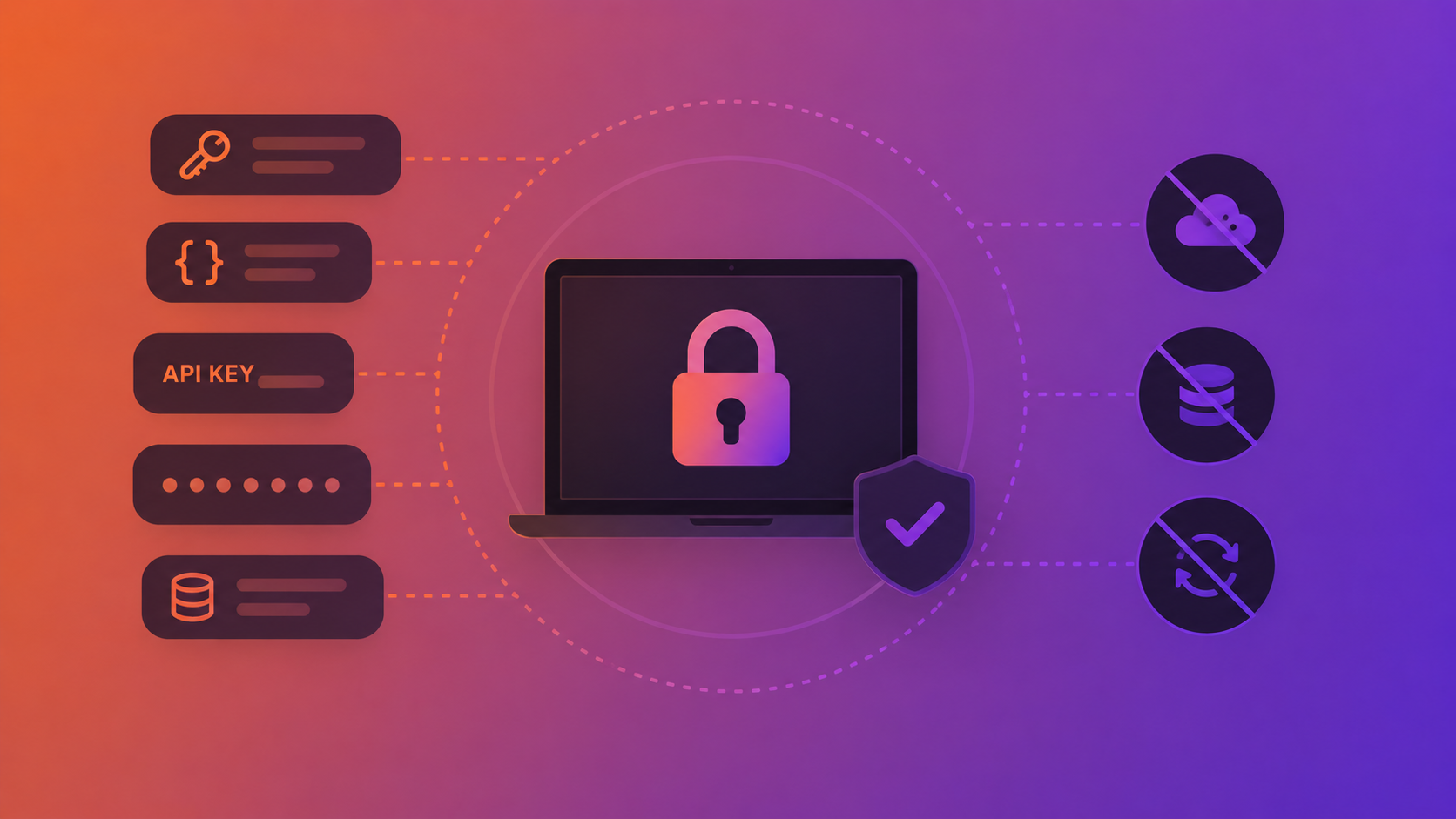
Think about what you copied today. A JWT from an API response. A database connection string. An API key from a .env file. A password from your password manager. A snippet of customer data from a support ticket. A private Slack message.
Your clipboard is one of the most sensitive data streams on your computer. It captures everything — and most clipboard managers store all of it without asking what it is or how sensitive it might be.
When that clipboard manager syncs to the cloud, every token, credential, and private message you've ever copied goes with it. This post makes the case for keeping your clipboard local, encrypted, and under your control.
The Problem with Cloud-Synced Clipboards
Cloud sync is a genuine convenience for some types of data. Notes, bookmarks, browser tabs — syncing these across devices makes life easier, and the security trade-off is usually acceptable.
Clipboard history is different. Unlike notes or bookmarks, you don't choose what enters your clipboard with the same deliberation. You copy things reflexively throughout the day, often without thinking about what you're putting on the clipboard. A cloud-synced clipboard manager captures all of this and transmits it to a server you don't control.
Consider what a typical developer's clipboard contains over the course of a week: API keys and secrets from .env files, JWTs and session tokens from debugging, database queries with real user data, SSH keys or passphrases, passwords (even briefly, when copying from a password manager), internal URLs and documentation, code snippets with proprietary logic, and customer PII from support tickets.
A cloud-synced clipboard manager stores all of this on a remote server. Even with encryption in transit and at rest, the data exists outside your machine. It's subject to the provider's security practices, their data retention policies, their response to law enforcement requests, and — critically — their breach history.
What "Local-First" Actually Means
A local-first clipboard manager stores everything on your device. The clipboard data never leaves your machine. There is no account to create, no cloud service to trust, and no data to exfiltrate because it simply isn't anywhere else.
But local-first is only half the equation. Local storage without encryption is just a plaintext file on your disk. Anyone with access to your machine — or a backup of your disk — can read your entire clipboard history.
Meaningful local-first architecture requires both: local-only storage and strong encryption at rest.
ClipBear uses AES-256-GCM encryption (the same standard used by banks and governments) for all clipboard history stored on disk. The encryption key is derived from your machine's hardware UUID using a deterministic process — it's never stored in a file, never saved to the keychain, and never transmitted anywhere. The key exists only as a derived value that's computed when the app needs it.
This means that even if someone copies your clipboard history file, they can't read it without your specific hardware. And since there's no cloud component, there's no server to breach.
The App Blacklist: Not All Copies Are Equal
Even with local encryption, there are apps whose clipboard content you might not want stored at all. Your password manager is the obvious example — when you copy a password from 1Password, you don't want it sitting in your clipboard history, encrypted or not.
ClipBear's app blacklist lets you exclude specific applications entirely. When you copy something from a blacklisted app, ClipBear ignores it — nothing is stored, nothing is logged, nothing is encrypted. It's as if the copy never happened.
This is a meaningful distinction from clipboard managers that store everything and rely on the password manager's own clipboard-clearing behavior. Many password managers clear the clipboard after 30–60 seconds, but during that window, a cloud-synced clipboard manager has already captured and transmitted the value.
On-Device AI: Privacy Without Compromise
One of the more interesting recent developments in this space is on-device AI processing. ClipBear includes two AI-powered features — grammar correction and image OCR — that traditionally would require sending data to a cloud API.
Grammar correction uses Apple's FoundationModels API (Apple Intelligence), which runs entirely on-device. When ClipBear checks your text for spelling and grammar errors, the processing happens on your Mac's neural engine. Nothing is sent to OpenAI, Anthropic, Google, or any other external service.
Image OCR uses Apple's Vision framework, also entirely on-device. When you copy a screenshot, ClipBear extracts any readable text using VNRecognizeTextRequest — a system-level API that processes images locally. The extracted text is available for one-click copying without ever leaving your machine.
This matters because these are exactly the features where cloud-based alternatives require uploading your data. Cloud OCR services need your image. Cloud grammar APIs need your text. On-device processing gives you the same functionality with none of the data exposure.
A Note on Trade-Offs
Local-first is not without trade-offs. The most obvious one is the absence of cross-device sync. If you copy something on your work Mac, you can't paste it on your personal Mac. For some workflows, this is a real limitation.
But for developers — who often work with sensitive data and are acutely aware of supply-chain risk — the trade-off usually favors security. The tokens, keys, and credentials in your clipboard are exactly the kind of data that should not exist on any server you don't operate.
ClipBear allows two devices per license key, so you can run it on both your work and personal machines. The clipboard histories are separate and local to each machine. If you need to move a specific value between machines, you can — but it's a deliberate action, not an automatic sync of everything you've ever copied.
What to Look for in a Clipboard Manager
If you're evaluating clipboard managers with security in mind, here are the questions worth asking:
Where is my data stored? On your device only, or on a cloud server? If cloud, which provider, and what's their breach history?
Is clipboard history encrypted at rest? If so, with what algorithm? Where is the encryption key stored? Can the vendor decrypt your data?
Can I exclude sensitive apps? Can you prevent specific applications (password managers, banking apps) from being recorded?
Does the AI phone home? If the clipboard manager offers AI features, do they process data on-device or send it to a cloud API?
What happens if the company shuts down? With a cloud-synced clipboard manager, your history may become inaccessible. With a local-first one, the data is on your machine regardless of the vendor's status.
ClipBear's answers: local only, AES-256-GCM with a hardware-derived key, yes to app blacklisting, fully on-device AI, and your data is yours regardless of what happens to ByteZoo Labs.
Your Clipboard Deserves Better
Your clipboard is a running log of the most sensitive data you interact with every day. It deserves the same security considerations you'd apply to your SSH keys or your password vault — not the casual treatment of a notes app with cloud sync.
A local-first, encrypted clipboard manager isn't about paranoia. It's about applying the same security principles you already use everywhere else to the one data stream most people overlook.
Try ClipBear free for 7 days at clipbear.app. Everything stays on your Mac.