URL Encoding and Decoding on Mac (Without a Website)
Stop pasting URLs into random online encoder/decoder sites. Here's how URL encoding works — and how to encode or decode a URL right from your clipboard on macOS.
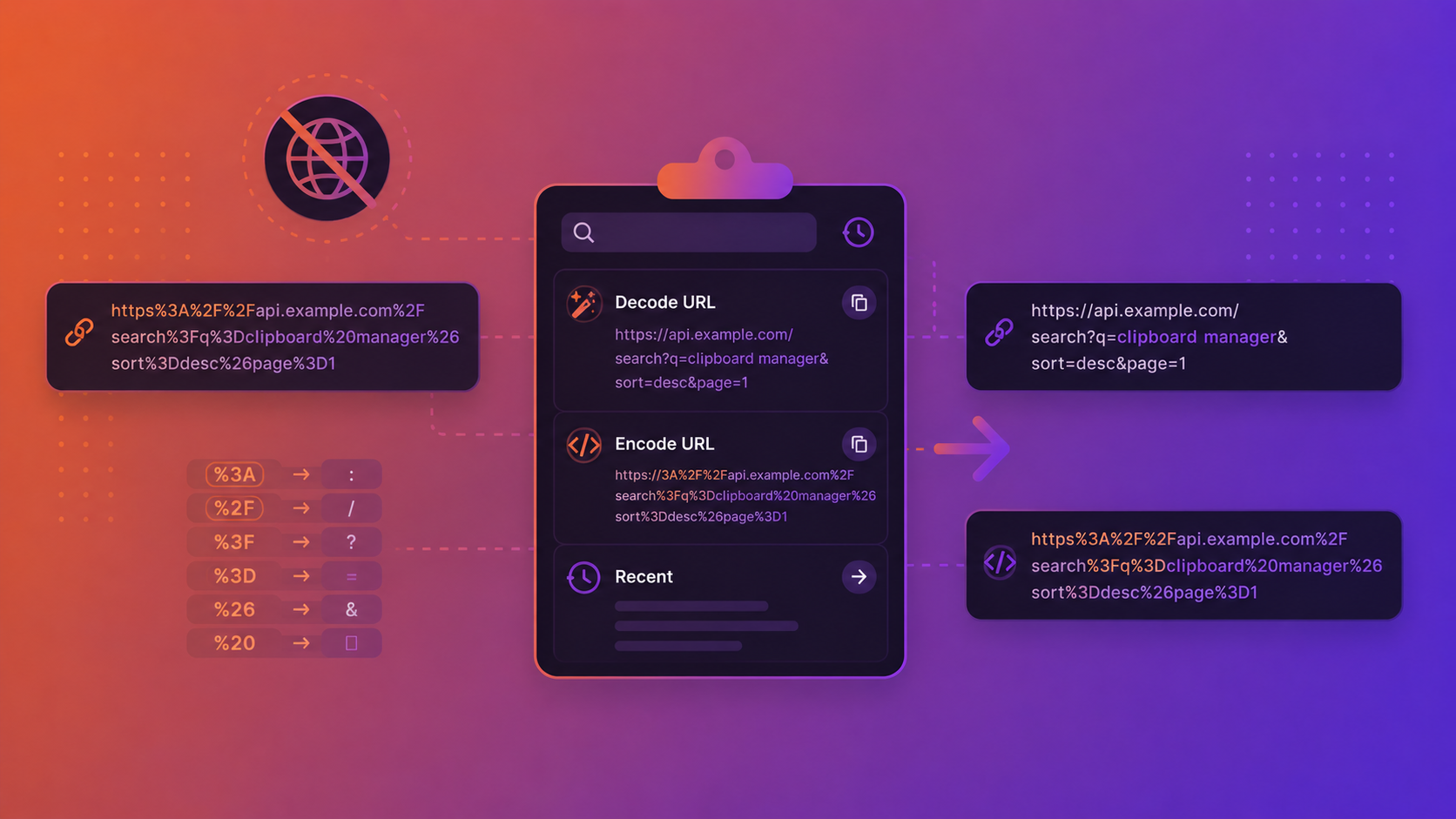
You've got a URL with a %20 and a %3F in it and you need to read it. Or you're building a query string and need to encode a value so it doesn't break. So you do what everyone does: open a "URL encoder/decoder" website, paste, copy the result, paste it back.
It works — but it's a round trip through a third-party site for something your Mac can do locally in one click. Here's how URL encoding actually works, when you need it, and a faster, more private way to handle it.
What URL encoding actually is
URLs are only allowed to contain a limited set of characters. Anything outside that set — spaces, most punctuation, non-English letters, and characters that have special meaning in a URL — has to be percent-encoded: replaced with a % followed by the character's hexadecimal byte value.
The classic example is a space, which becomes %20. So this:
https://example.com/search?q=hello world
becomes this:
https://example.com/search?q=hello%20world
Decoding is just the reverse — turning %20 back into a space so the URL is human-readable again.
When you actually need it
- Building query strings — any value going into a
?key=valuepair needs encoding so characters like&,=,?, or/don't break the URL's structure. - Reading encoded URLs from logs — server logs and analytics are full of
%-encoded URLs that are hard to read until you decode them. - Debugging redirects and OAuth flows — these pass entire URLs inside other URLs as encoded parameters (a
redirect_uri, for example), so you constantly need to decode to see what's really going on. - Sharing links safely — encoding makes sure a URL survives being pasted into chat, email, or a config file without getting mangled.
A quick percent-encoding reference
| Character | Encoded |
|---|---|
| space | %20 |
! | %21 |
# | %23 |
$ | %24 |
& | %26 |
' | %27 |
+ | %2B |
/ | %2F |
: | %3A |
= | %3D |
? | %3F |
@ | %40 |
The usual way — and why it's not ideal
The default move is an online URL encoder/decoder. For a throwaway public URL, that's fine. But URLs aren't always harmless:
- A
redirect_urior OAuth callback can contain tokens and client identifiers. - Internal URLs reveal hostnames, paths, and infrastructure you may not want pasted into a random website.
- Query parameters frequently carry session IDs, API keys, or signed values.
Pasting those into a third-party site — even one that promises to process "in your browser" — is a habit worth dropping. And beyond privacy, it's just slow: copy, switch tabs, paste, pick encode or decode, copy, switch back.
A faster, private way: encode/decode from your clipboard
ClipBear handles URL encoding and decoding directly from your clipboard, on your Mac, with nothing leaving your machine.
When you copy a standalone URL — or a string with percent-encoding in it — ClipBear detects it and offers one-click URL encode and URL decode actions right on the clipboard entry. Copy the encoded URL from your logs, click decode, and the readable version is on your clipboard, ready to paste. No tab switch, no website, no upload. It does the same for HTML entities (the &, <, > you run into in markup), detecting and decoding them automatically.
Because it's all local, it doesn't matter whether the URL contains a token or an internal hostname — that data never leaves your Mac.
Frequently asked questions
What's the difference between URL encoding and HTML encoding? URL (percent) encoding makes text safe to put in a URL — spaces become %20. HTML encoding makes text safe to put in a web page — < becomes <. They solve similar problems in different contexts, and ClipBear handles both.
Why does a space sometimes become + instead of %20? In the query-string portion of a URL, the older application/x-www-form-urlencoded format encodes spaces as +. Both are valid depending on context; %20 is the more general form.
Is it safe to decode a URL that contains a token? Decoding itself is harmless — it just makes the text readable. The risk is where you decode it. Doing it locally on your Mac (rather than pasting it into a website) keeps the token off third-party servers.
Do I need an internet connection? Not with a local tool. ClipBear encodes and decodes entirely on-device, so it works offline.
Skip the round trip
URL encoding and decoding is a tiny task you do dozens of times a week — and every trip to an online encoder is a context switch and a small privacy gamble. Doing it from your clipboard keeps it instant and keeps your URLs on your machine.
Try ClipBear free for 7 days at clipbear.app. Everything stays on your Mac.