How to Decode a JWT Without jwt.io
You don't need to paste your tokens into jwt.io. Here's how to decode a JWT's header and payload locally on your Mac — and why pasting tokens into a website is a habit worth dropping.
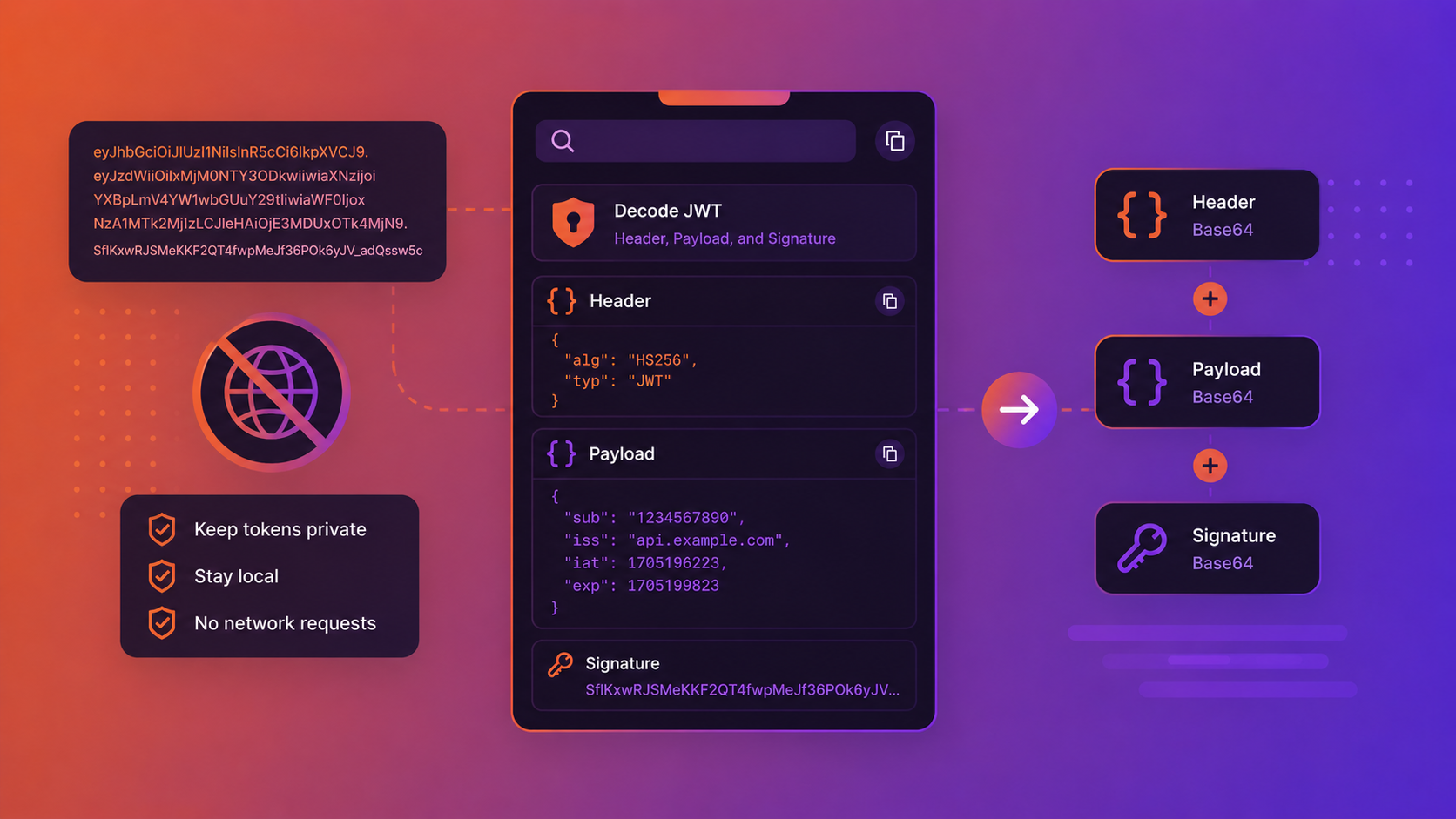
Every developer who works with auth knows the ritual: copy a JWT from a response or a log, open jwt.io, paste it in, read the payload, switch back. It's quick, it's familiar — and it means you just pasted a credential into a website.
This post covers what's actually inside a JWT, why pasting tokens into online decoders is worth avoiding, and how to decode one locally on your Mac in a single click.
What's inside a JWT
A JSON Web Token is three base64url-encoded parts separated by dots:
header.payload.signature
- Header — metadata about the token, like the signing algorithm (
alg) and type (typ). - Payload — the claims: who the token is for, who issued it, when it expires, and any custom data.
- Signature — a cryptographic signature used to verify the token hasn't been tampered with.
The header and payload aren't encrypted — they're just base64url-encoded, which means anyone can decode and read them. That's exactly what jwt.io does, and exactly what you can do locally instead.
The problem with pasting tokens into a website
A JWT is usually a live credential. The token you copied from that API response or log line may still be valid — and it grants whatever access it was issued for. Pasting it into a third-party website deserves a second thought:
- It's a credential leaving your machine. Even decoders that claim to run "entirely in your browser" are still a website you're trusting with a working token, and the habit generalizes to ones that don't.
- Many companies prohibit it. Pasting access tokens or anything resembling production secrets into external sites is a common security-policy violation.
- It's an easy mistake to make at scale. When you decode dozens of tokens a day, "just this once into a website" becomes muscle memory.
The information you want from a JWT — the claims — is sitting right there in the token. You don't need to send it anywhere to read it.
How to decode a JWT locally on your Mac
ClipBear decodes JWTs straight from your clipboard, on-device, with nothing uploaded.
Copy a token — with or without the Bearer prefix — and ClipBear detects that it's a JWT. From the clipboard entry you can copy the decoded header or payload as pretty-printed, indented JSON in one click. No jwt.io tab, no paste, no upload. It handles the standard three-part base64url format, including tokens with URL-safe characters.
So the workflow that used to be copy, open jwt.io, paste, read, copy claim, switch back becomes copy, click, paste the decoded payload wherever you need it — and the token never leaves your Mac.
What you can read in the payload
Once decoded, the payload's standard claims tell you most of what you need when debugging auth:
exp— expiration time (a Unix timestamp). If the token's failing, this is usually the first thing to check.iat— issued-at time.iss— issuer (who created the token).sub— subject (usually the user or entity the token represents).aud— audience (who the token is intended for).
A handy follow-on: exp and iat are Unix timestamps, which are hard to read at a glance. ClipBear also detects Unix timestamps, so you can convert that exp value to a human-readable date inline — no separate timestamp converter needed.
Important: decoding is not the same as verifying
One thing worth being clear about, because it's a common source of confusion: decoding a JWT only reads it — it does not verify the signature. Anyone can decode the header and payload of any JWT, because they're just base64url-encoded text.
Verifying a token — confirming the signature is valid and the token was genuinely issued by who it claims — requires the signing key and is something your backend does, not a decoder. Decoding is for reading and debugging what's in a token; it should never be used to decide whether to trust one. ClipBear (like jwt.io) decodes for inspection; it doesn't validate signatures, and it shouldn't be used as an authorization check.
Frequently asked questions
Can anyone read my JWT? The header and payload, yes — they're only base64url-encoded, not encrypted. That's precisely why you shouldn't put sensitive data in a JWT payload, and why decoding one locally is trivial.
Does decoding a JWT expose the signature secret? No. The signature is included in the token, but the secret used to create it is not. Decoding never reveals the signing key.
Do I need to be online to decode a JWT? No. Because the payload is just encoded text, decoding is purely local math. ClipBear does it on-device, offline.
What if my token has a Bearer prefix? ClipBear detects JWTs with or without the Bearer prefix, so you can copy straight from an Authorization header.
Stop sending your tokens to a website
Reading a JWT is a local operation — the claims are right there in the token. Pasting it into jwt.io sends a working credential to a third party for no reason. Decoding from your clipboard is faster and keeps your tokens on your machine.
Try ClipBear free for 7 days at clipbear.app. Everything stays on your Mac.